
What does the voice prompt “Hearing Mode Deactivated” mean?
Hearing Mode is the default state of the headset when you are NOT on a mobile call, and NOT streaming music/video. It allows you to hear the sounds around you, such as live conversations, and sounds in nature.
Hearing Mode can be activated/deactivated in two ways:
- using the headset (a long press on the middle button of the right-hand side is an ON/OFF toggle switch)
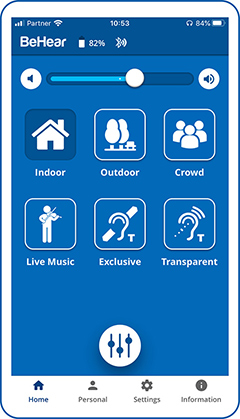
- using the W&H BeHear app (sliding the top scale all the way to the left deactivates Hearing Mode, any other position on the scale activates it):
The voice prompts and notification tones are too loud, and the vibration alert is annoying.
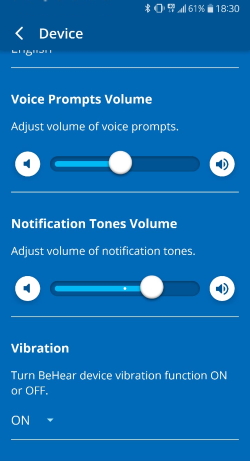 It is possible to adjust the volume of the voice prompts and the system notification tones. You can also decide whether the vibration alert should be set to ON or OFF. All of these functions are located in the same screen of the W&H BeHear smartphone app.
- Tap the Settings menu.
- Tap the Device icon.
- For Voice Prompts:
- Scroll down until you find the Voice Prompts Volume setting.
- Slide the button to the right to increase the volume or to the left to decrease the volume.
- For Notification Tones:
- Scroll down until you find the Notification Tones Volume setting.
- Slide the button to the right to increase the volume or to the left to decrease the volume.
- For Device Vibration:
- Scroll down until you find the Vibration setting.
- Choose either ON or OFF from the drop down menu.
While I’m on a call using the BeHear headset I periodically hear the voice prompt say “disconnected” and then “connected” (but the call doesn’t drop). How can I get it to stop?
This sometimes happens when two Bluetooth devices (e.g., your smartphone and a computer) are both connected to the BeHear headset. We recommend disconnecting the device which is not currently in use for the purposes of the call.